How to Build a 3D FEA Model: Step-by-Step Guide
Finite element analysis doesn't have to be complicated. This guide walks you through building a complete 3D structural model in six simple steps-from placing your first node to viewing member diagrams and plate contours. No download or signup required.
Build a 3D model and inspect animated buckling mode shapes
Build Your First Model in 6 Steps
Draw Your Structure
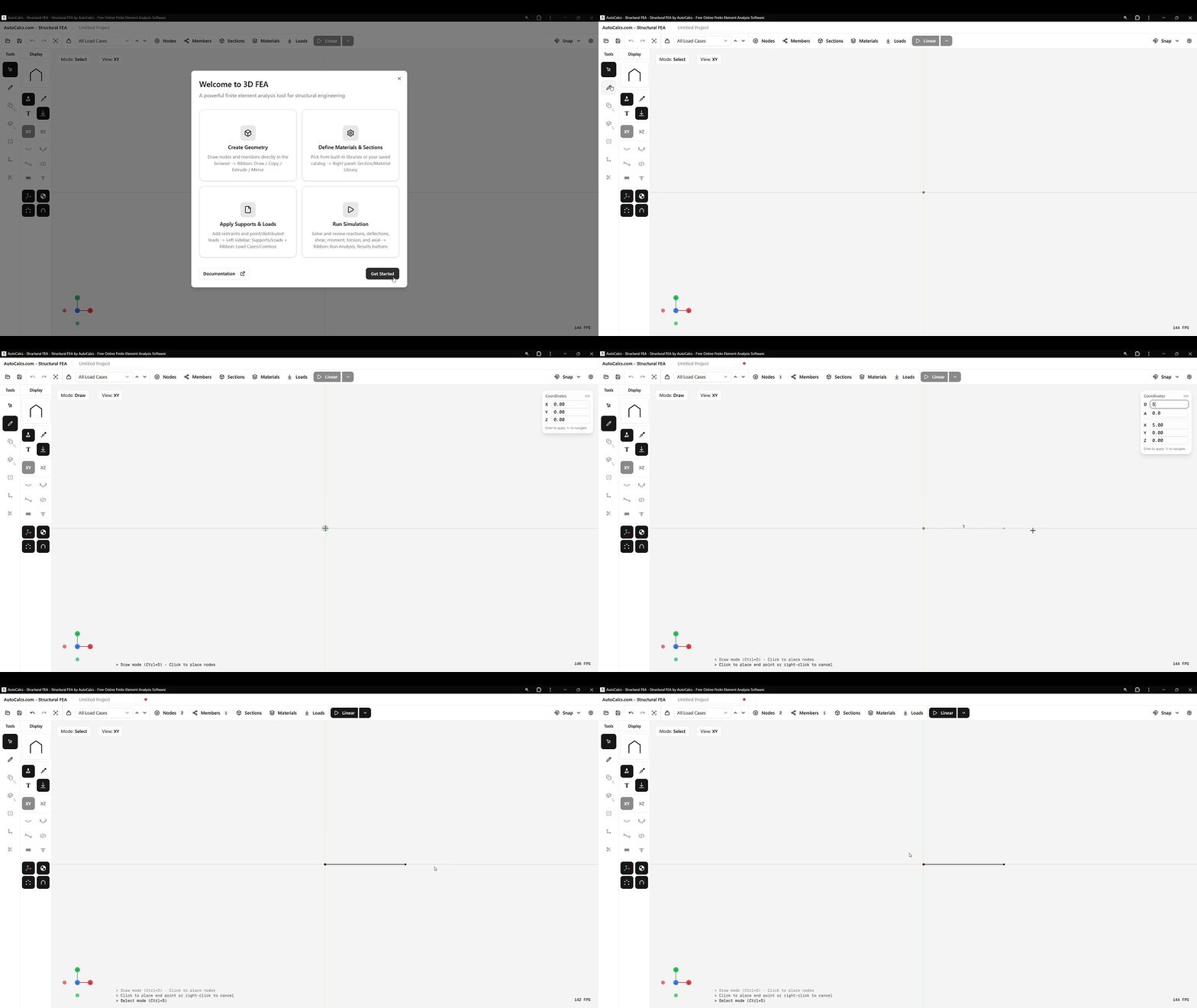
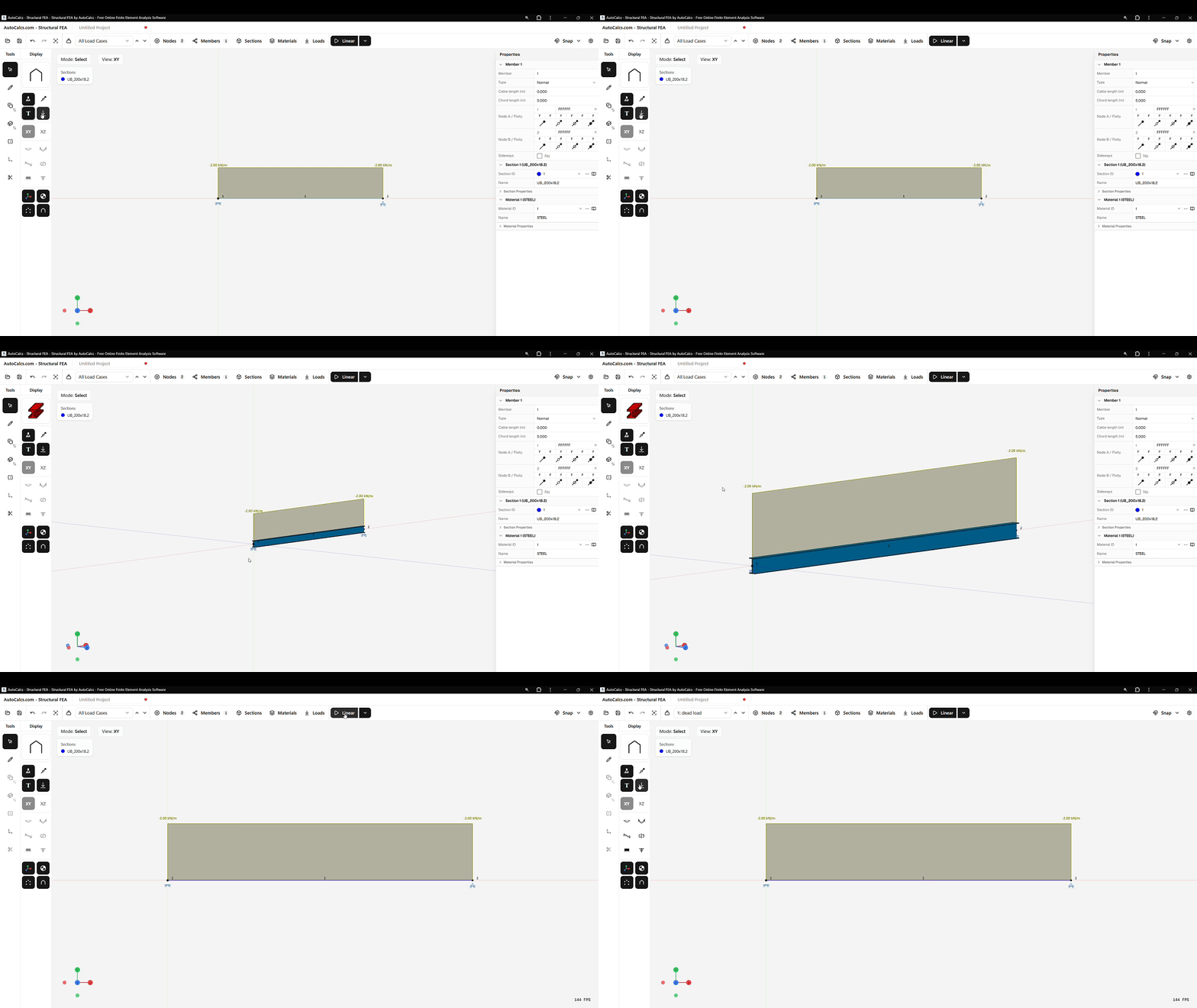
Start by placing nodes in 3D space and connecting them with members or plate elements. Click to place nodes, draw members between them, or add quadrilateral and triangular plates to define your structural geometry. You can create beams, frames, plates, trusses, or any combination.
Add Supports
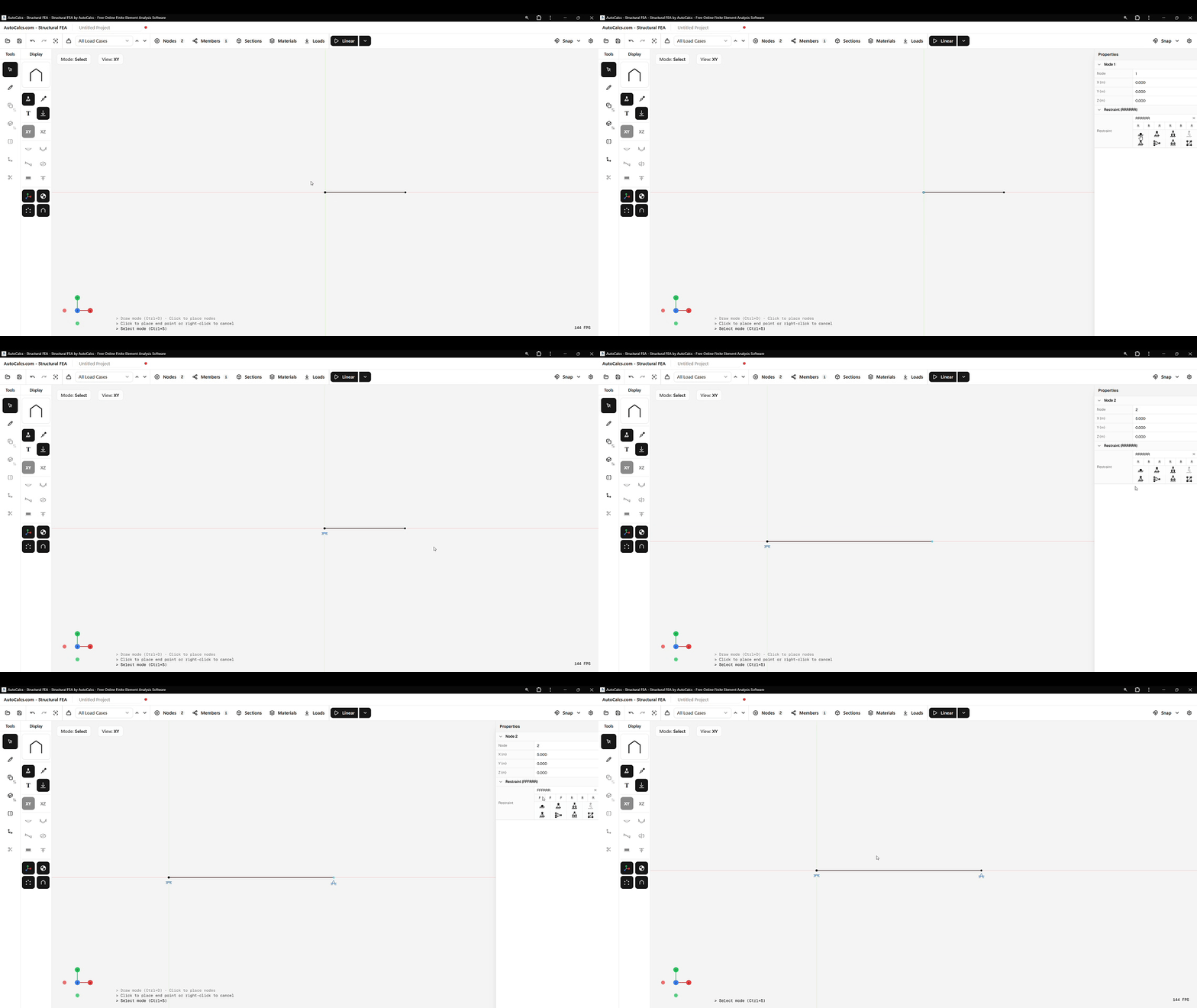
Define how your structure connects to the ground by assigning support conditions to nodes. Choose from fixed, pinned, or roller supports-or create custom restraints by locking individual degrees of freedom.
Assign Sections and Materials
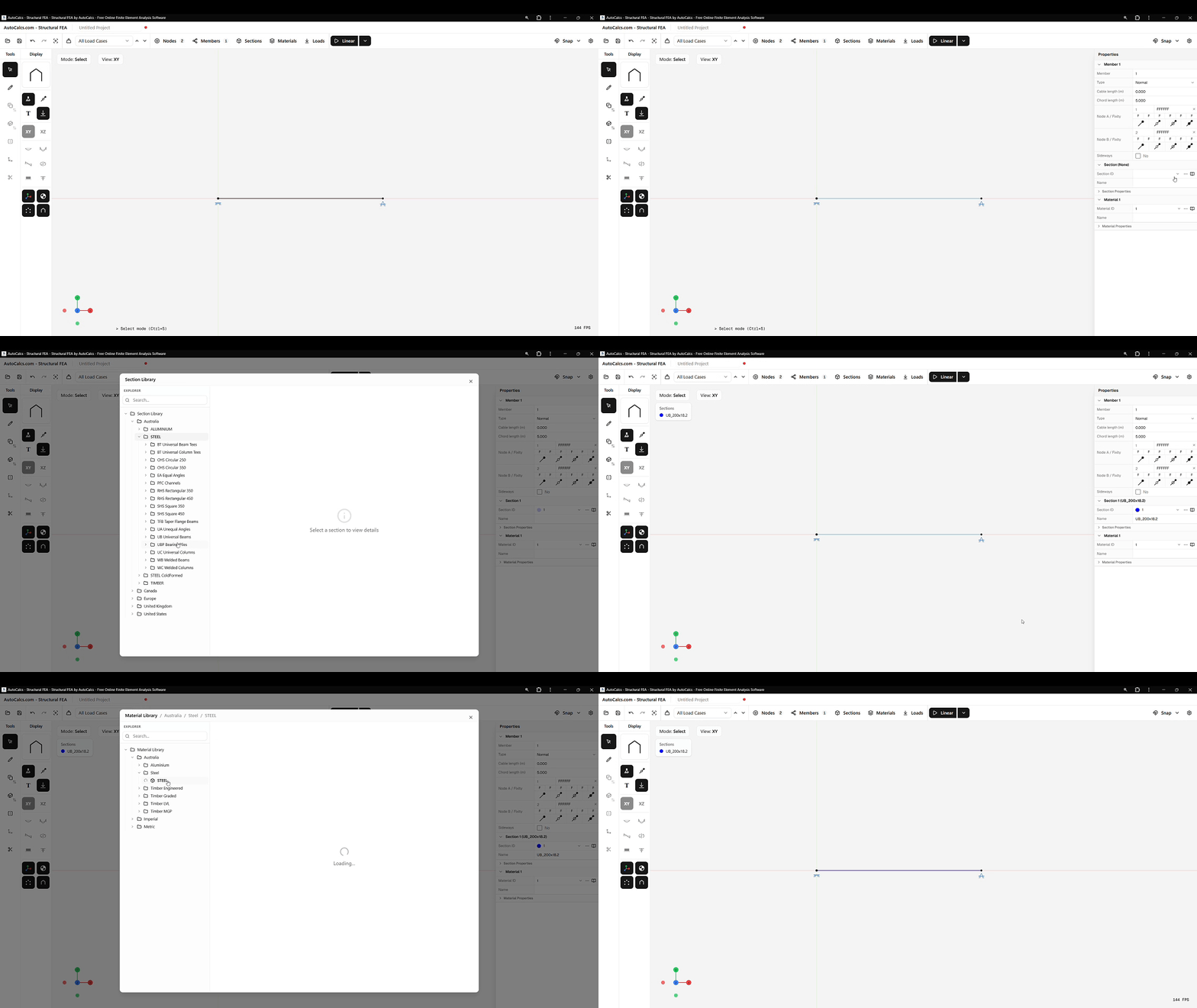
Select cross-sections from a library of thousands of real profiles-steel W shapes, HSS tubes, timber, aluminium, and more. Each section comes with pre-calculated properties like area, moment of inertia, and section modulus.
Apply Loads
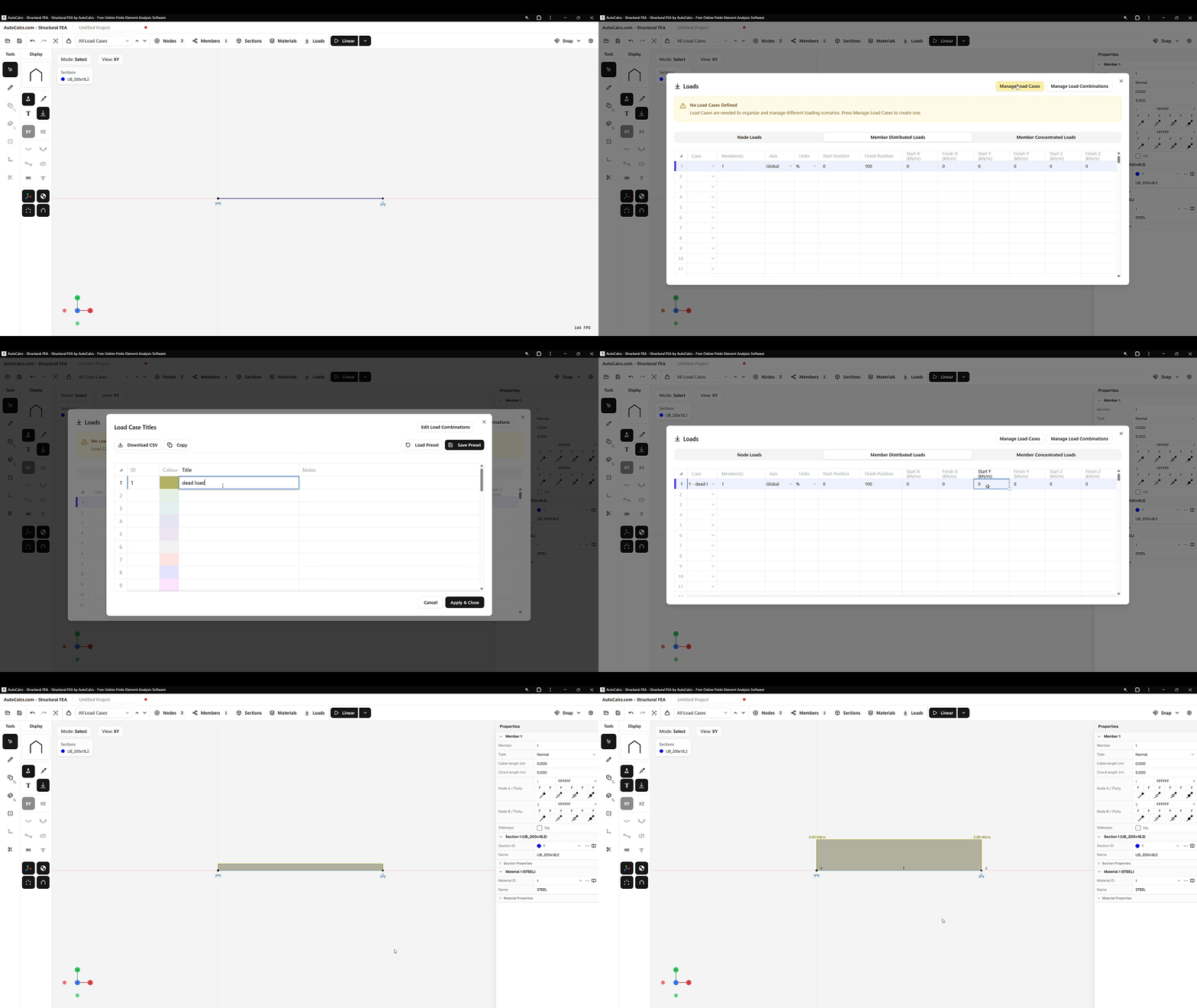
Add point loads, distributed loads, plate pressures, or moments to your members, plates, and nodes. Organise loads into separate load cases (dead, live, wind, etc.) to analyse different scenarios independently.
Run the Analysis
Hit the Run Analysis button and the solver computes your model using the Direct Stiffness Method. The FEA engine assembles element stiffness matrices, applies boundary conditions, and solves the global system in seconds.
View Results
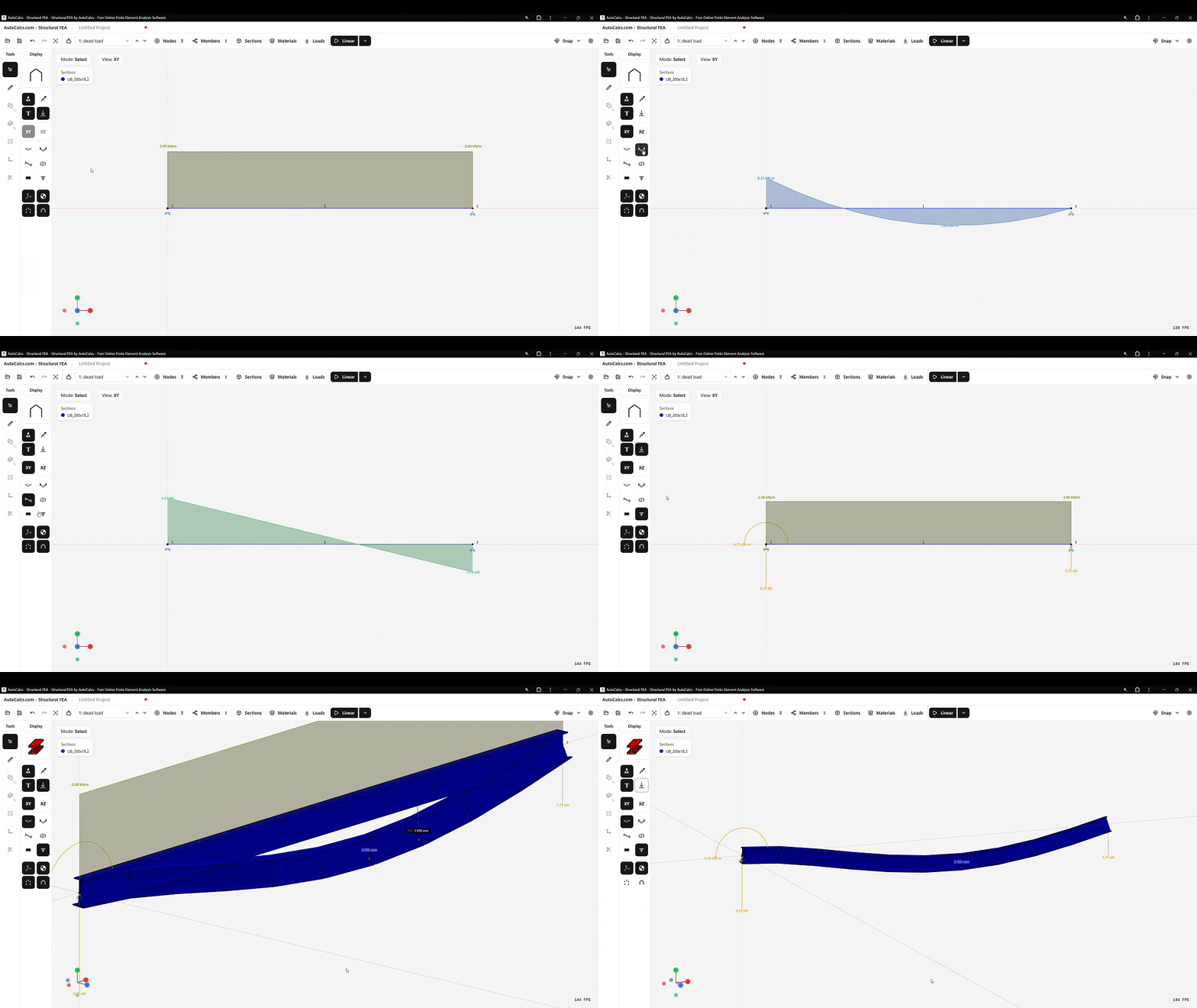
Explore your results interactively in 3D. Visualise deflected shapes, bending moment diagrams, shear force diagrams, axial force, torsion, plate contours, and stress distributions. Check reactions at supports. PDF and Excel analysis report downloads are a Pro feature.
Why Use AutoCalcs for FEA?
Most FEA software requires expensive licenses, lengthy installations, and a steep learning curve. AutoCalcs runs entirely in your browser and is designed to get you from zero to results as fast as possible.
- Free tier - Core analysis types are available without a licence fee, subject to daily-run and model-size limits
- Browser-based - Works on any computer, no installation or IT approval needed
- Real section libraries - Thousands of steel, timber, and aluminium profiles with properties
- Full 3D analysis - Not limited to 2D; model space frames, trusses, plates, slabs, and complex geometry
- Instant results - Moment, shear, axial, torsion, deflection, plate contour, and stress diagrams
- P-Delta, Buckling & Modal capable - Run second-order, elastic buckling, and natural-frequency analysis when needed